Use Still Nodding in Zoom.
You’ll need the Mac app, macOS 15 or later, and Zoom Workplace for desktop. In Zoom, the camera to look for is called echo99Bot Camera.
1. Enable the camera on your Mac
Open the app and choose Move to Applications if prompted. In the setup window, grant Camera access, then click Install next to echo99Bot Camera.
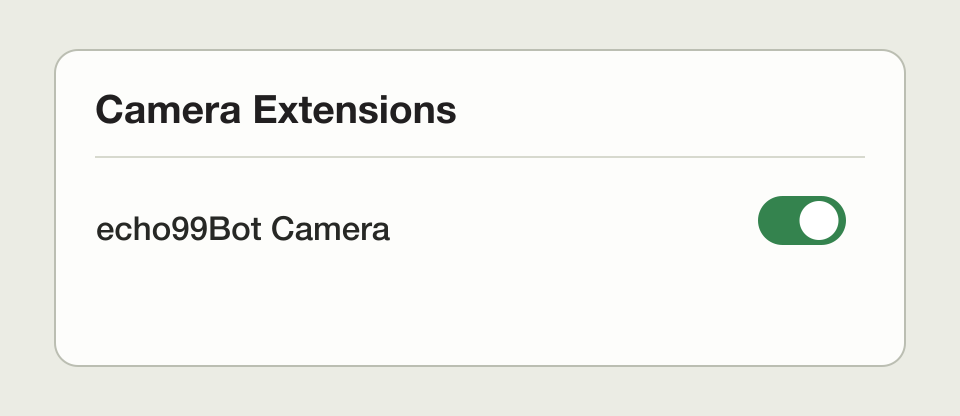
In System Settings, open General → Login Items & Extensions → Camera Extensions and enable the extension for echo99Bot. Return to the app and click Continue when the required steps are complete. Microphone and call audio are optional for voice commands.
2. Choose the camera in Zoom
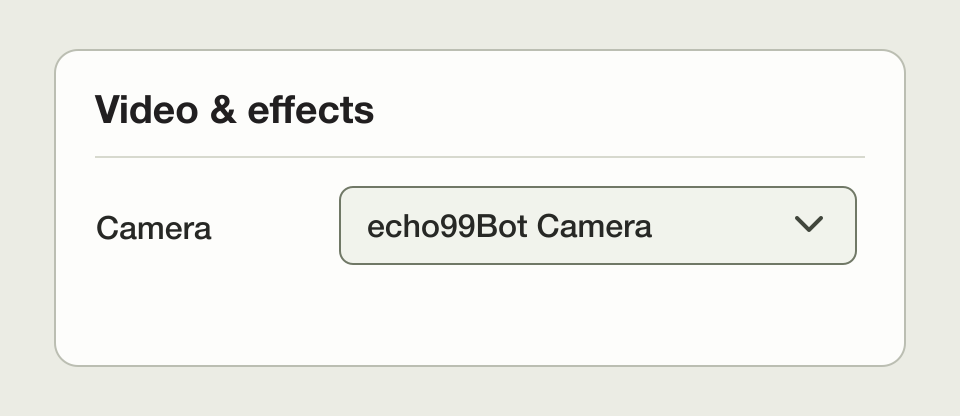
Open Zoom Workplace. Click your profile picture, open Settings → Video & effects, then choose echo99Bot Camera in the Camera menu. Zoom will show a preview.
Already in a meeting? Open the arrow beside Video in the meeting toolbar and select echo99Bot Camera.
3. Test an effect before your call
Leave Zoom’s preview open. In the Mac menu bar, open the app and turn on Spiders. When you see spiders descend in Zoom, you’re ready. Turn Spiders off in the same menu.
If the camera is missing
Check that the camera extension is enabled in System Settings. If Zoom was already open when you enabled it, quit Zoom completely and reopen it. If the Mac app’s setup window asks for a restart, finish that step and check Zoom’s camera menu again.